eRefunds
eRefunds
eRefunds
The Office of the Bursar recommends that students who expect to receive a refund to enroll in our eRefund service, and we offer this service to Parent PLUS borrowers as well. When students or Parent PLUS borrowers sign up for eRefund, Rowan deposits any refunds directly into the designated account (personal checking or savings account based in the United States) of their choice.
Why Sign Up for Direct Deposit?
- Faster - Access your money faster when compared to paper check.
- Safer - Your bank information is kept confidential, and your funds will not be lost in the mail, stolen, or misplaced.
- Easier - Your refund is sent straight to your designated bank account.
- “Go green!” - eRefund is a more environmentally friendly option.
How to Sign Up for eRefund
eRefund for Students
To enroll in eRefund, please follow the instructions provided below.
- Go to Self-Service Banner.
- Log in using your Rowan NetID and password.
- Select the “Bursar” tab.
- Select “ePay Center” from the menu to be directed to the secure payment site.
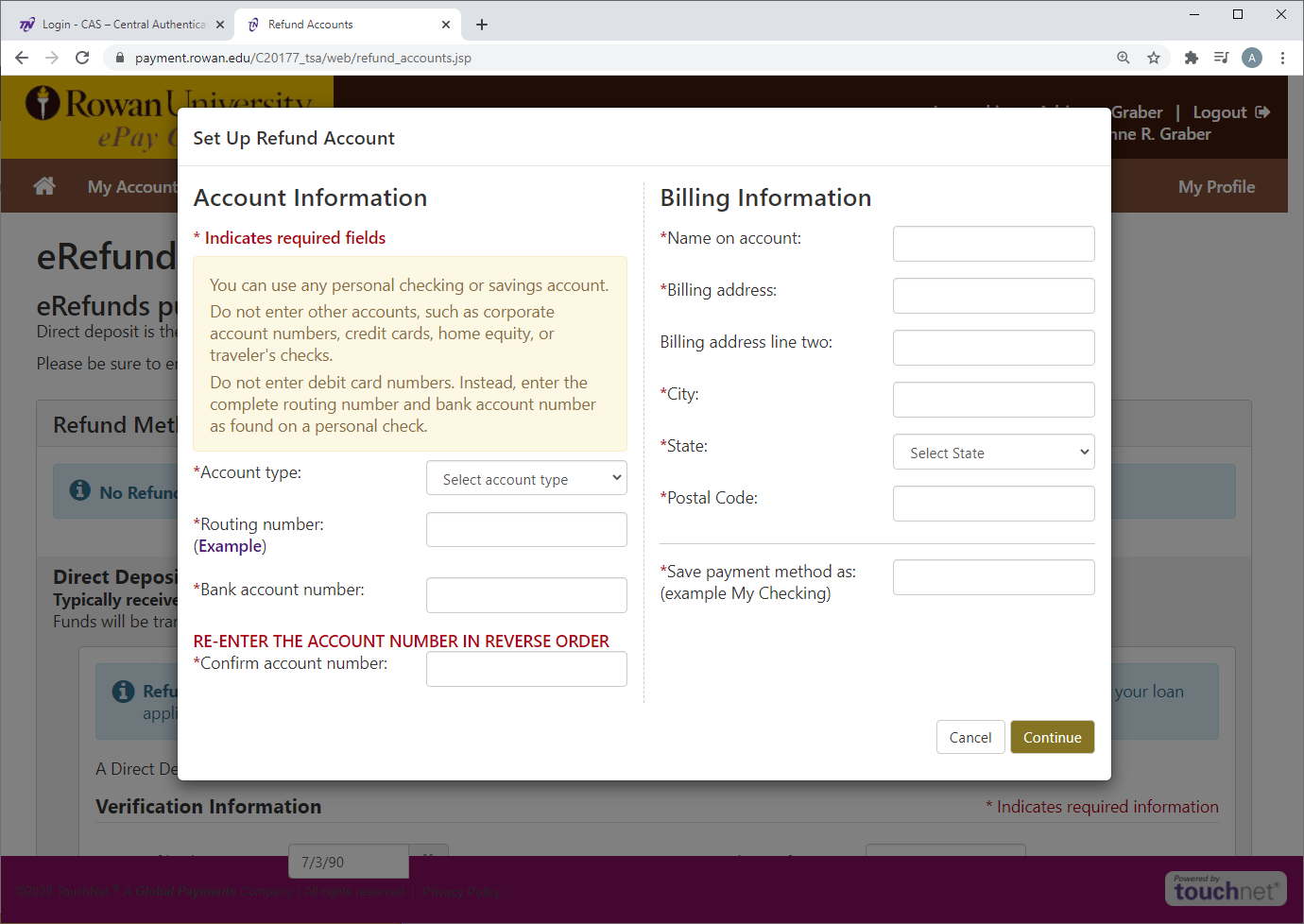
- Once you are directed to the ePay Center, select “Refunds” at the top of the page and follow the steps provided to set up your eRefund account.
NOTE: We do not accept debit card numbers for direct deposit. Providing incorrect information will delay your refund.
eRefund for Parent PLUS Borrowers
In order to sign up for PLUS eRefund, PLUS borrowers must first be designated as an authorized user by the student in the ePay Center.
Should a PLUS refund exist on a student account and a borrower has been authorized but no refund account has been set up, the borrower will receive an e-mail notifying them of a pending refund and the need for the refund account to be created and Two-Step Verification completed. The refund cannot be completed until the PLUS borrower completes these steps and designates a bank account to use for refunds.
How to Enroll as An Authorized User and Complete Your Personal Profile
Enrolling as An Authorized User
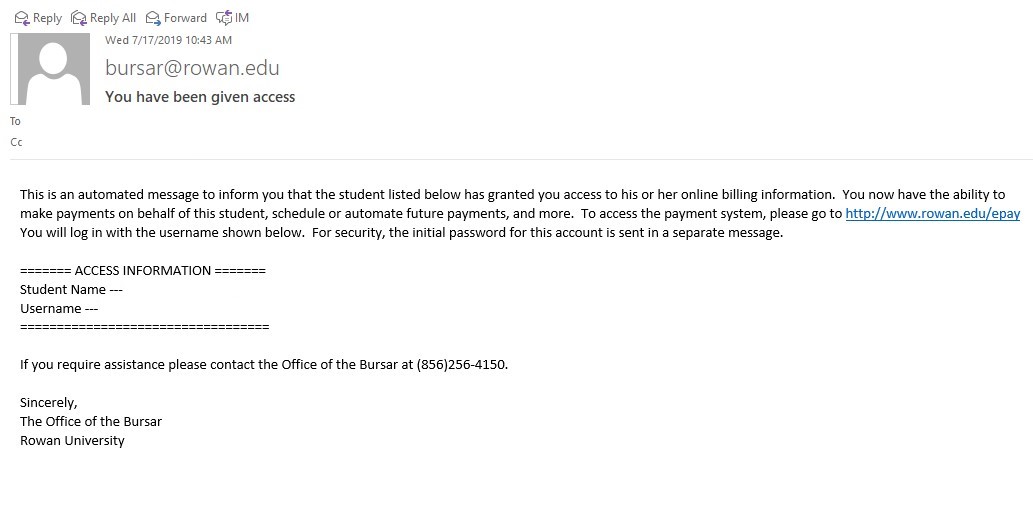
- Once a PLUS borrower has been designated as an authorized user, he/she will receive two confirmation (2) e-mails. The first e-mail will confirm that the user has been granted access to online billing information and will provide the username needed in order to log in.
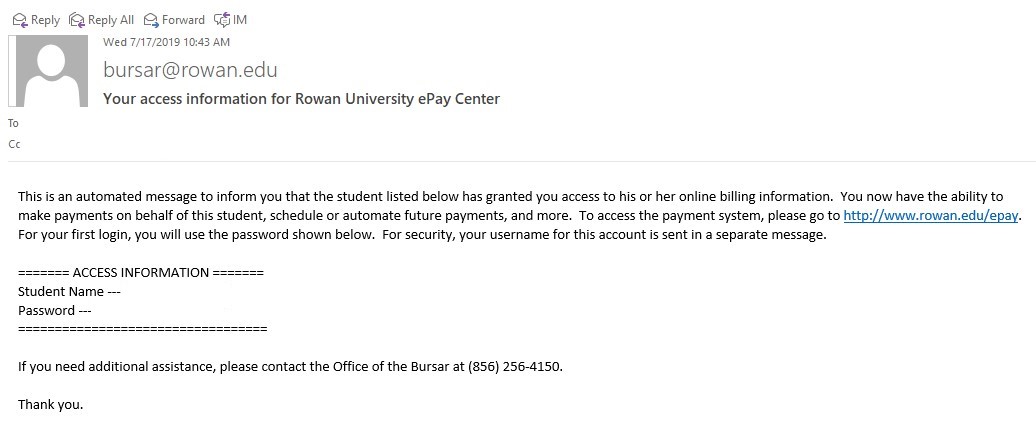
- The second e-mail will look very similar to the first e-mail, but the difference is that this communication provides the password that will be required in order to log in to the ePay Center.
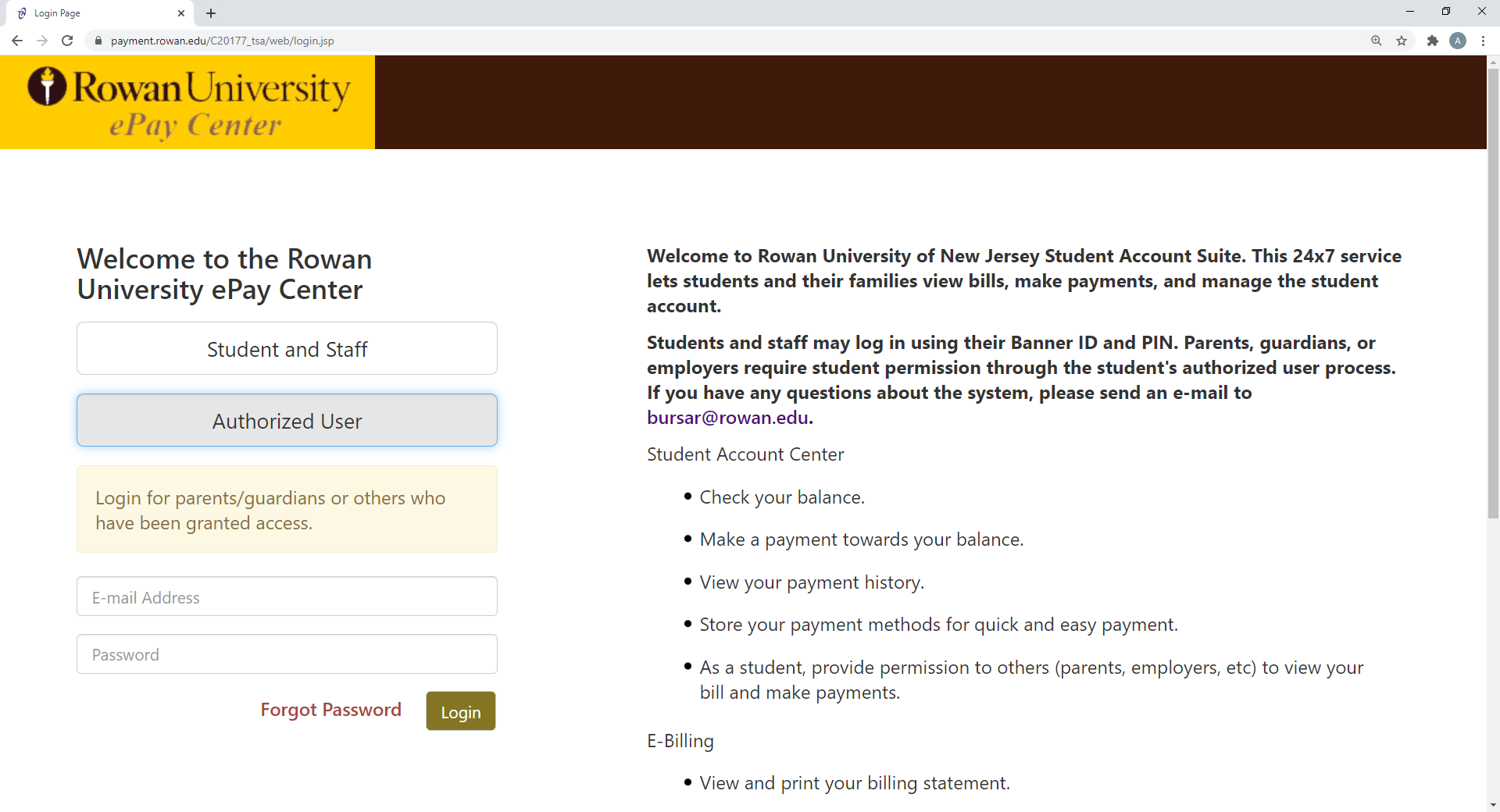
- Once the credentials have been established, go to rowan.edu/epay and log in by selecting "Authorized User" to set up your profile.
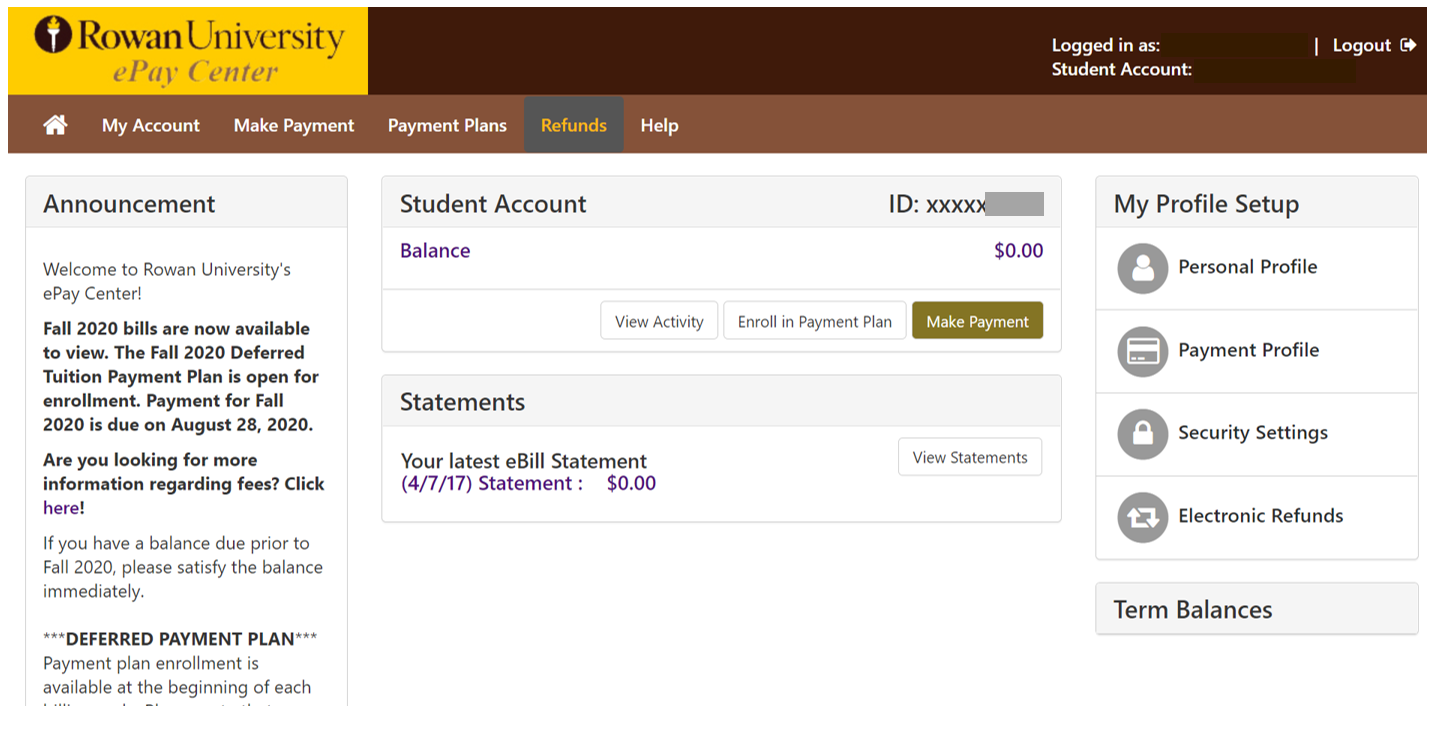
- Once logged in, choose “Refunds” on the top menu.
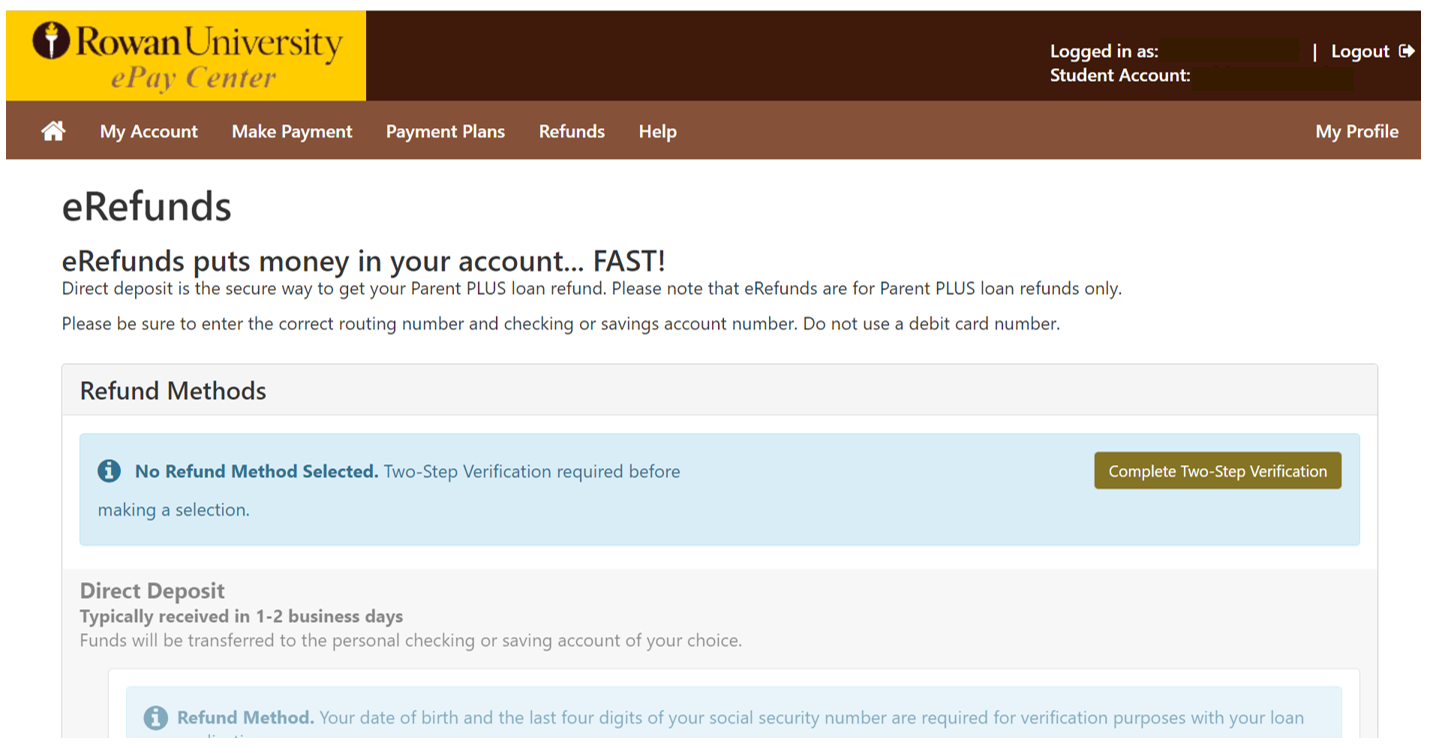
Two-Step Verification
- You will be prompted to complete Two-Step Verification, as well as verify direct deposit information, which includes your date of birth and the last four digits of your Social Security Number (SSN). NOTE: Should either one of these items be incorrect or missing, your refund will not process as an electronic refund.
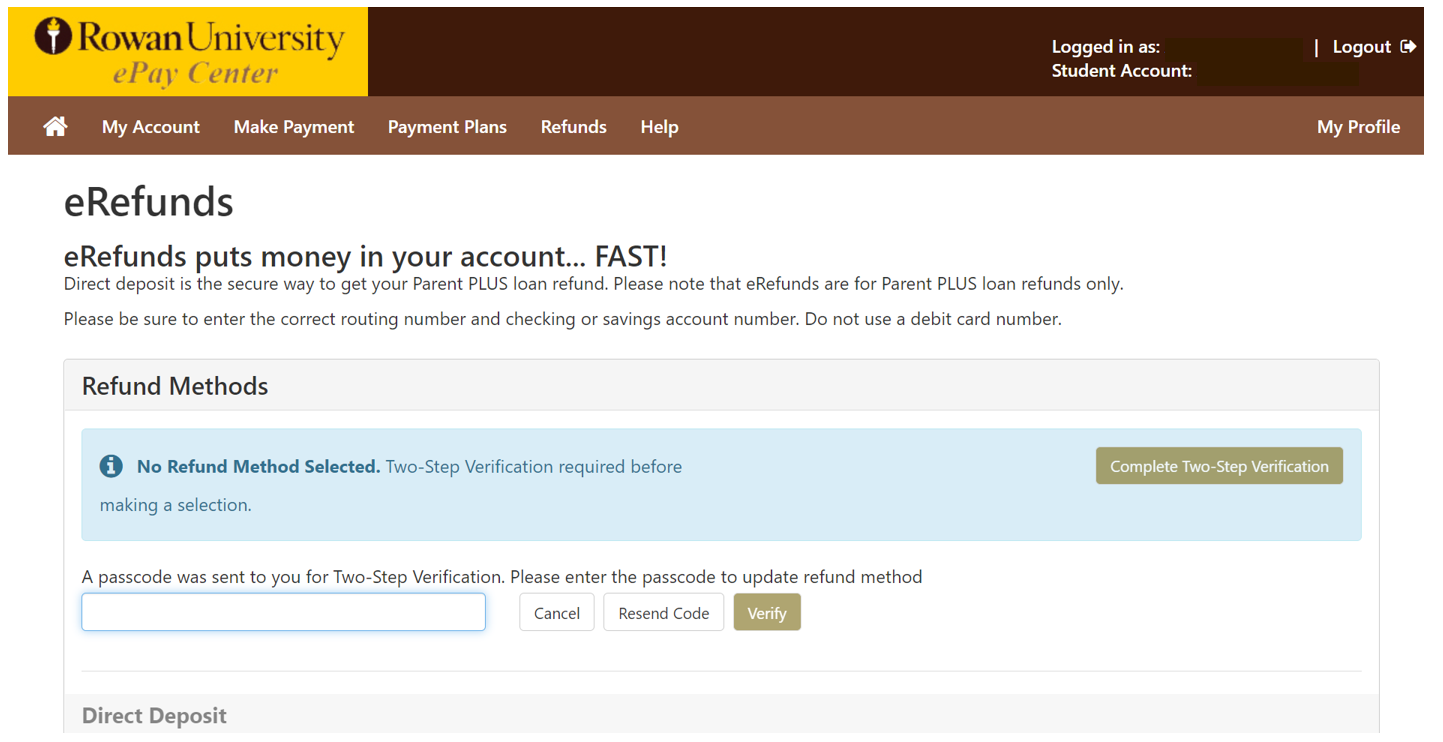
- Enter the code that is sent to your method of verification. Select “Verify” once you have entered the code.
- Enter your date of birth in a MM/DD/YYYY format. Enter the last four digits of the PLUS loan borrower’s social security number. Then, select “Set up a new account”.
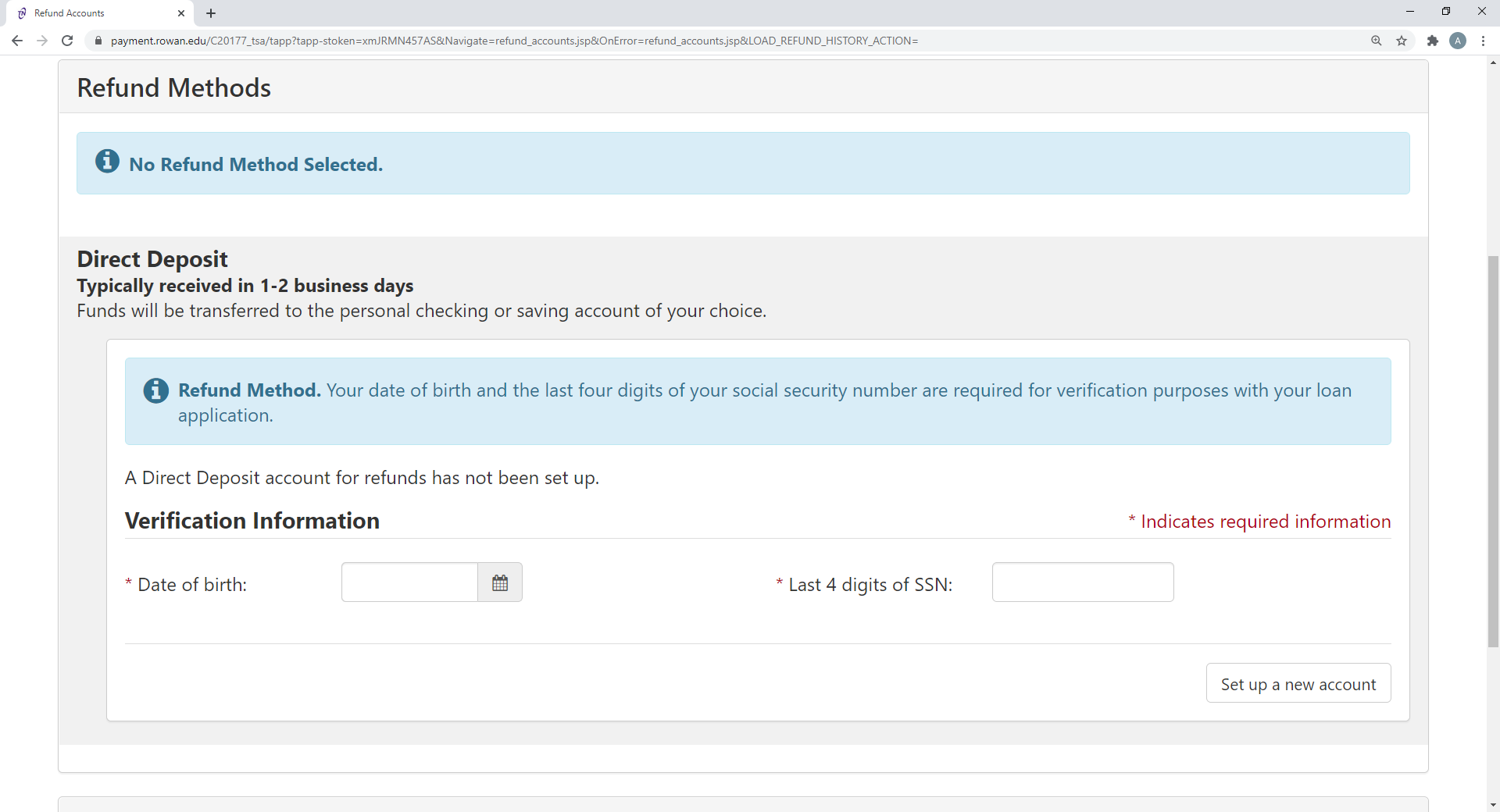
- Complete all fields in the “Set Up Refund Account” window. Please review the information carefully before selecting “Continue”.